Free account Create a free account and get 30 conversion credits — no credit card required.
TrueVector V6 · Image to SVG

Image to vector converter for logos and artwork

Vectorize PNG, JPG, WebP, static GIF, BMP and TIFF images into editable paths. Compare the original, inspect vector outlines, then download SVG, EPS or vector PDF when you approve the result.

AI PREP

Is your image weak or pixelated? Prepare it first

Optionally clean your image in ChatGPT or Gemini, without redesigning it. Compare the result with the original: generative tools can change lettering or invent details. Upload the PNG version you approve.

  1. Open ChatGPT or Gemini using either official link.
  2. Upload your image and paste the ready-made prompt exactly as written.
  3. Download the result as a PNG, then vectorize it here.
Choose the right engine after preparing your image

The engine has four specialists. Choose the one closest to your image for a more accurate result; the engine choice controls analysis, while the palette is set in the color controls below upload.

For download, comparison and quality improvement, we keep your uploaded image and result files privately for up to 24 hours only, then delete them automatically.

Choose a vector engine

This is required before conversion starts. Your choice is recorded with the result for comparison and improvement.

For a two-color result, choose “Two colors” in the color controls after choosing an engine.

Your first result download is freePreview first. No deduction until download.
Your balance: 0 points

Convert PNG and JPG images into SVG paths

PNG → SVG

PNG to SVG: start with a clean logo, icon or flat illustration. Keep the original transparency when you need a cutout; inspect small gaps and thin details in the result. An SVG preview is not proof that the source layers or editable fonts were recovered.

JPG → SVG

JPG to SVG: JPEG compression can introduce speckles and uneven edges. Try artifact cleanup, compare at a useful zoom and avoid forcing too few colors. Tracing a blurry image cannot restore details missing from the original.

From upload to an editable result

  1. Upload your approved artwork

    Use a PNG, JPG or WebP you have permission to process. Keep a copy of the original.

  2. Choose settings and compare

    Adjust colors, background and filled shapes or centerlines. Check lettering, corners and negative spaces.

  3. Download and inspect the SVG

    Preview for free. Only the first download of this result uses your free offer or 30 points. SVG, EPS and PDF plus repeat downloads are then included.

Your AI logo should be more than a flat image

A logo exported from ChatGPT or Gemini is often a raster image. Enlarging it does not create editable vector paths. TrueVector Fusion V1.1 traces suitable artwork into SVG so you can adjust shapes and colors in a vector editor instead of starting the drawing again.

ChatGPT logo to vector

Upload the PNG you approved, choose a palette and convert it into paths. Review small lettering and thin lines before using the result.

Gemini design to SVG

Move a generated logo, icon or flat illustration into an editable workflow. A vector conversion is different from simply increasing image resolution.

Open the result in Illustrator

Download SVG, EPS or PDF and inspect the individual vector paths in your design application. Traced letters are shapes, not editable font text or the original source layers. AI is a PDF-compatible vector file for opening in Adobe Illustrator, not a native Illustrator source document.

A real conversion from our test
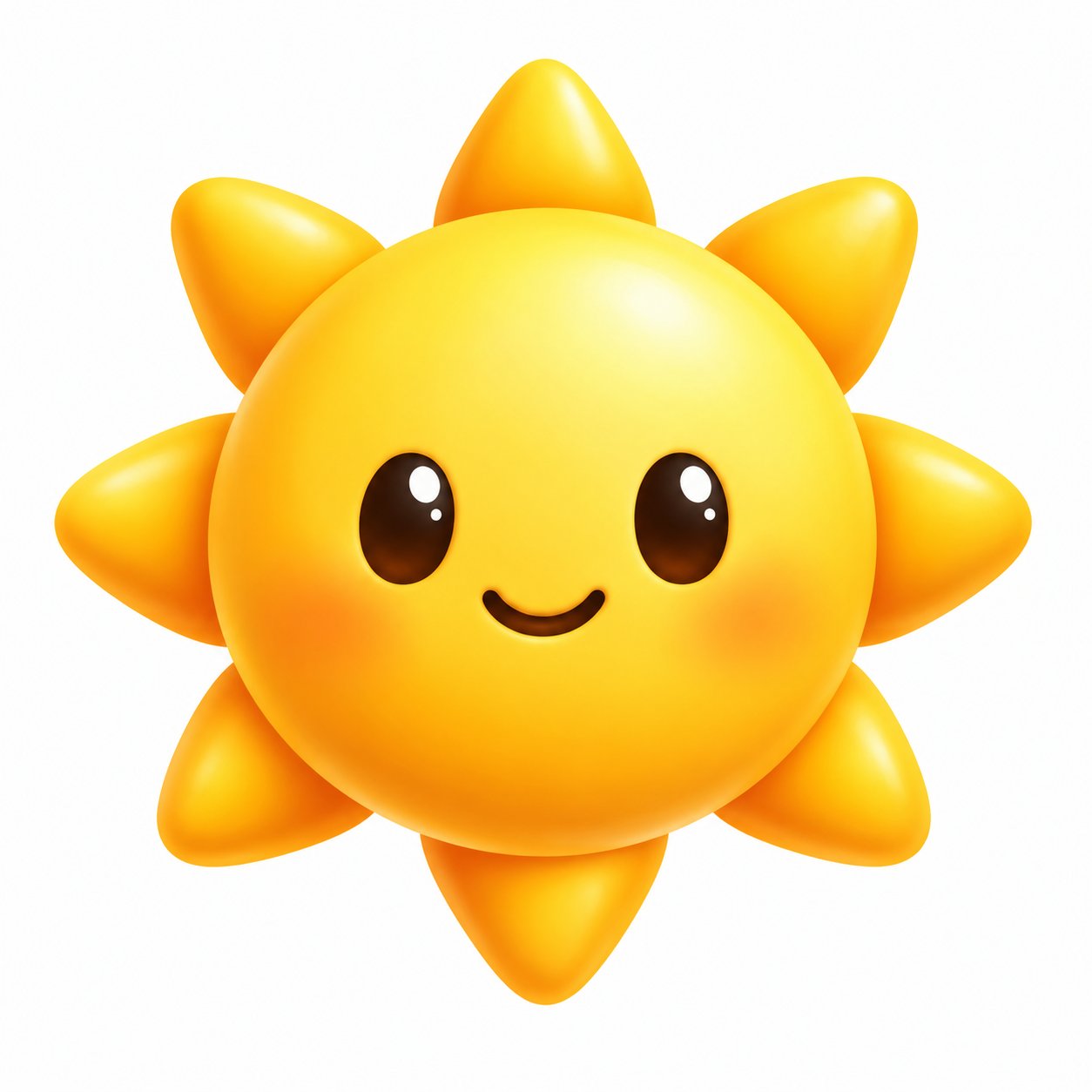
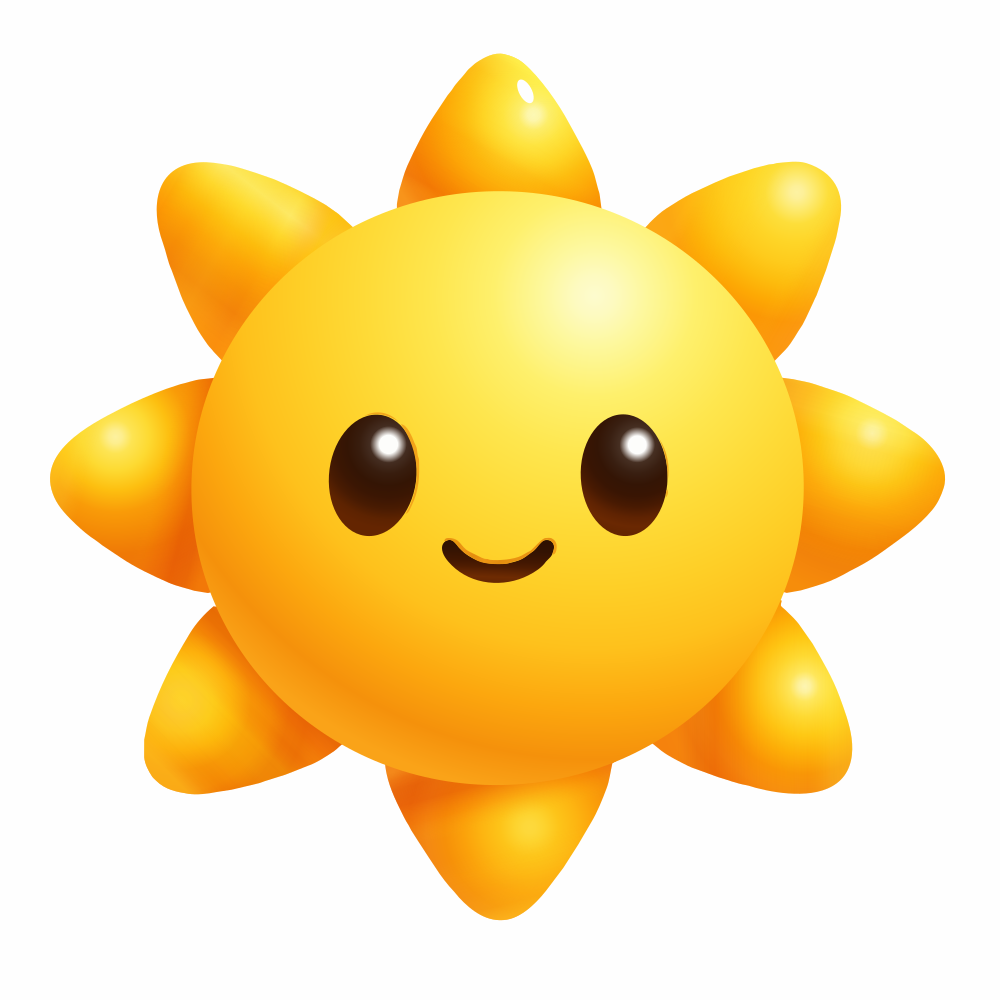
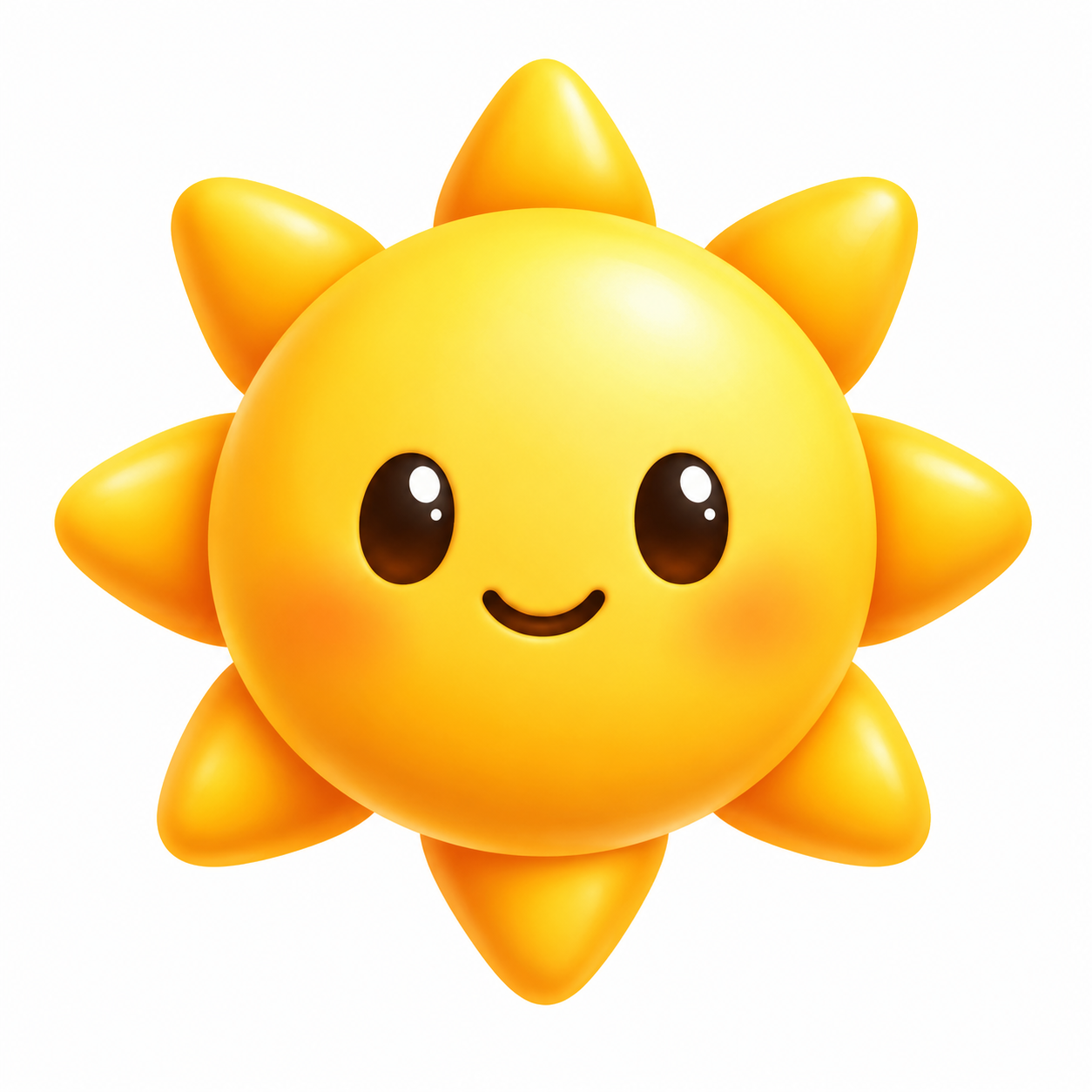
Sun illustration — original raster
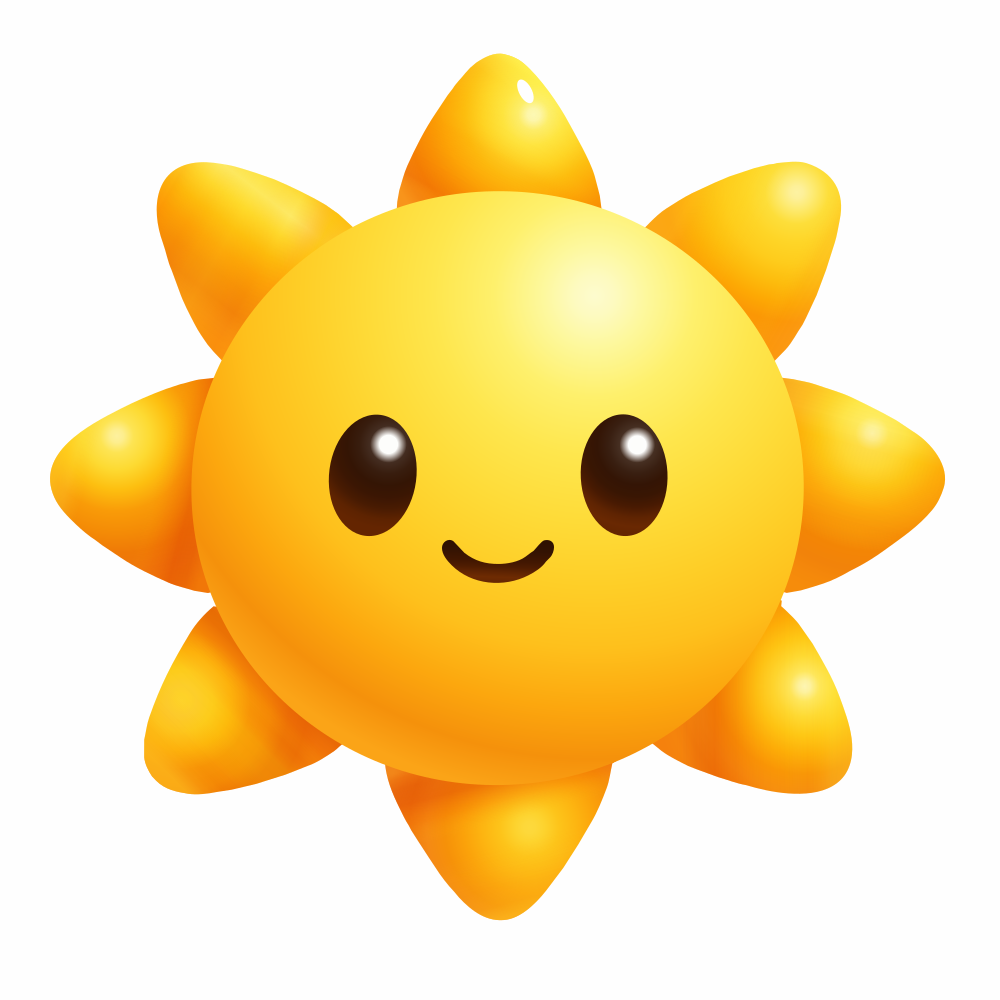
Sun — preview rendered from the V6.3 SVG

Experimental TrueVector V6.3 conversion. This example did not pass every automated edge-quality check; inspect fine details before production use. The preview is raster; the generated file contains SVG paths.

More real results, not retouched after-images

These previews come from the deployed V6.2 SVG outputs tested on 25 October 2026. The complete set includes cases that need correction; it is not a comparison against competitors.
View all 10 examples and download the SVG files

What powers TrueVector Fusion V1.1?

The current engine combines OpenCV image processing, NumPy color operations, SciPy geometry tools and Cairo rendering. It analyzes colors, traces contours and checks the rendered result. You control palette size, transparency, background color, filled shapes or centerlines, grouping and right-angle alignment.

OpenCVNumPySciPyCairoSVG

Quality you can inspect, not an unexplained percentage

The pipeline checks edges, silhouette overlap and detail retention. Results vary with the source and settings: photographs, blur, tiny text and complex effects need extra care. Vectorization does not recover missing information, original layers or editable font text. Inspect the preview before downloading.

Image-to-vector questions

Can I edit the result in Adobe Illustrator?

Download SVG, EPS or PDF and inspect the individual vector paths in your design application. Traced letters are shapes, not editable font text or the original source layers.

Will my text remain editable as a font?

No guarantee. Traced lettering is usually shapes, not live text. For accurate typography, retype it in Illustrator using the correct licensed font.

Does a bigger image always produce better SVG?

No. Clean contours and a suitable design matter more than pixel count. Photographs and heavily blurred images may need manual simplification.

How much does one image cost?

Previews are free and do not deduct points. The first result download per account is free. Unlocking each later result costs 30 site points at download, including SVG, PDF and PDF-compatible AI. Repeat downloads of that result do not cost more.

Is VersionFixer affiliated with these AI or design tools?

No affiliation is implied. ChatGPT, Gemini and Adobe Illustrator are mentioned to explain the workflow; their trademarks belong to their respective owners.
Create free preview

TrueVector examples and guides

TrueVector V6.2: 10 real before-and-after examples

These images were processed by the deployed TrueVector V6.2 service on 25 October 2026. The right-hand previews were rendered from the resulting SVG, not manually redrawn. Download the files to inspect the paths in your own editor.

What the test does—and does not—show

The set contains two VersionFixer artworks, two AI-generated illustrations and six controlled fixtures. It is a small demonstration, not a representative independent benchmark or a competitor comparison. All ten results are included, including difficult cases. The engine processing median was 1.885 seconds, but startup, upload, queueing and download add time; this is not a response-time promise. Computation in this test used CPU on a cloud host where a GPU was available; it is not evidence of GPU acceleration.

How to judge a result

Zoom into small lettering, narrow gaps, corners, overlapping colors and transparent areas. Check the visual match and whether paths are practical to edit. An internal quality gate is not a percentage of accuracy: the forced-palette example changed colors despite passing its gate. A line-center result must be judged as strokes rather than as a filled silhouette.

Choose a suitable input

Clear flat logos and line art are useful starting points. Shading, tiny text and damaged JPEG edges need more inspection. Large sources in this test were normalized to a one-megapixel working image. The output does not recreate missing details, original layers or live font text.

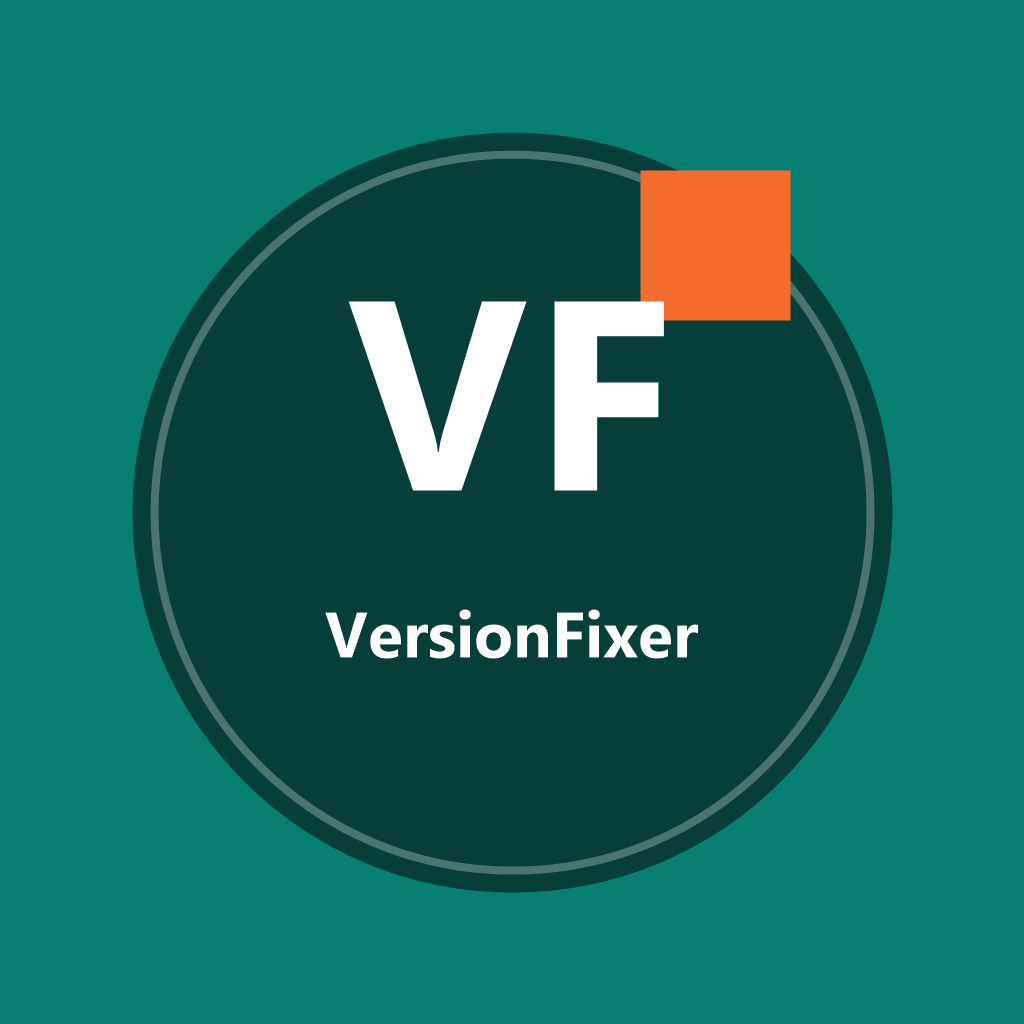
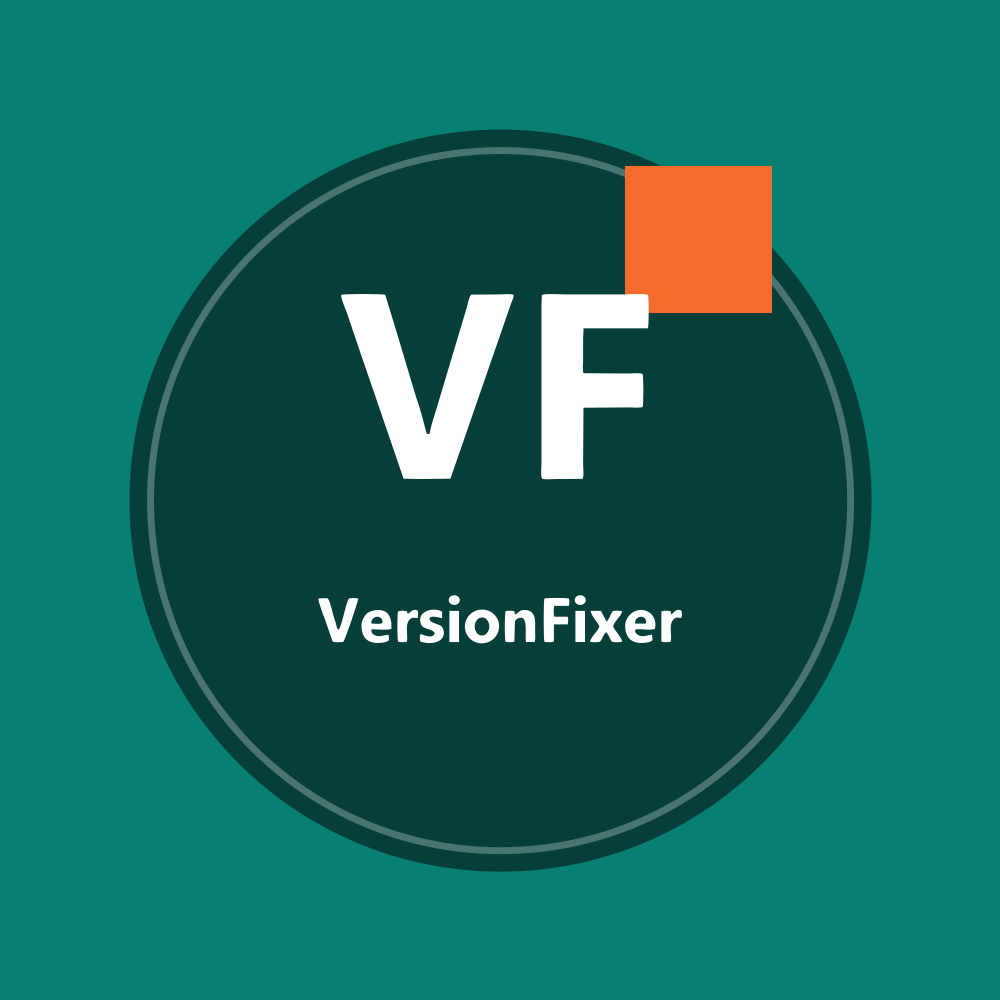
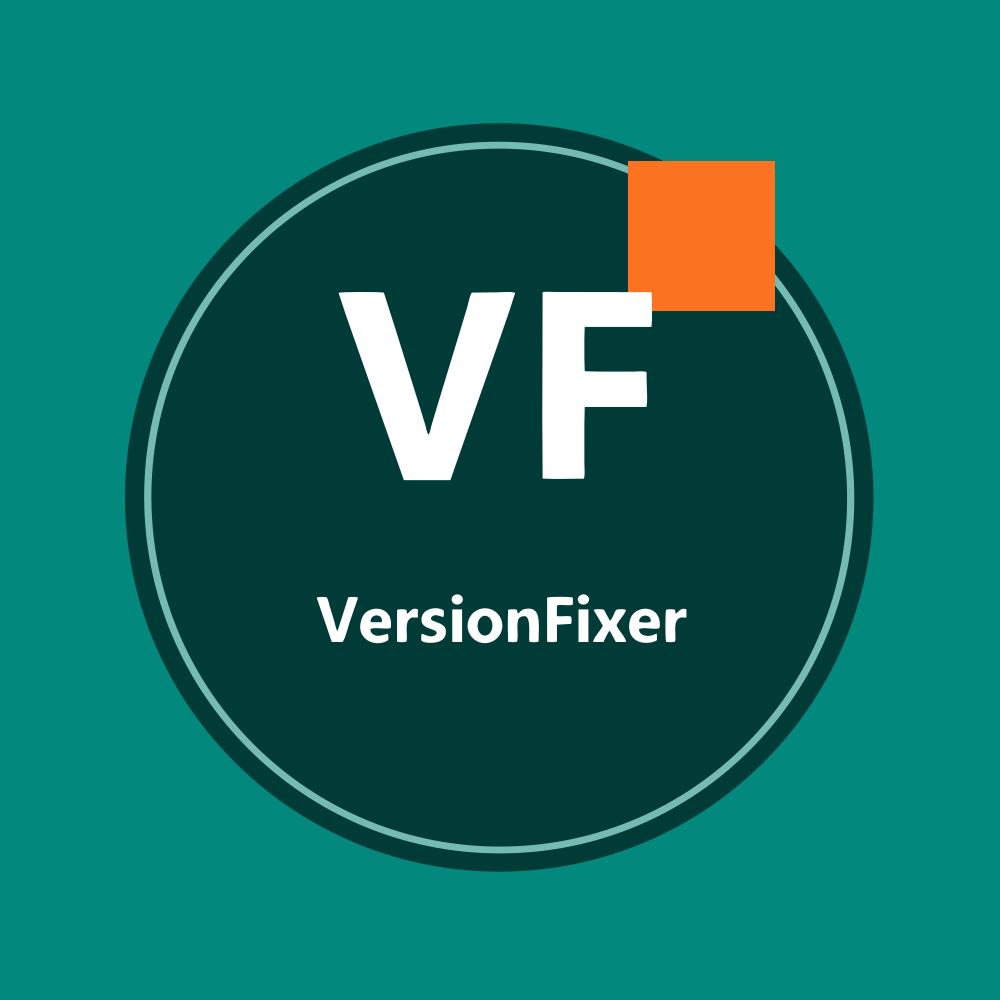
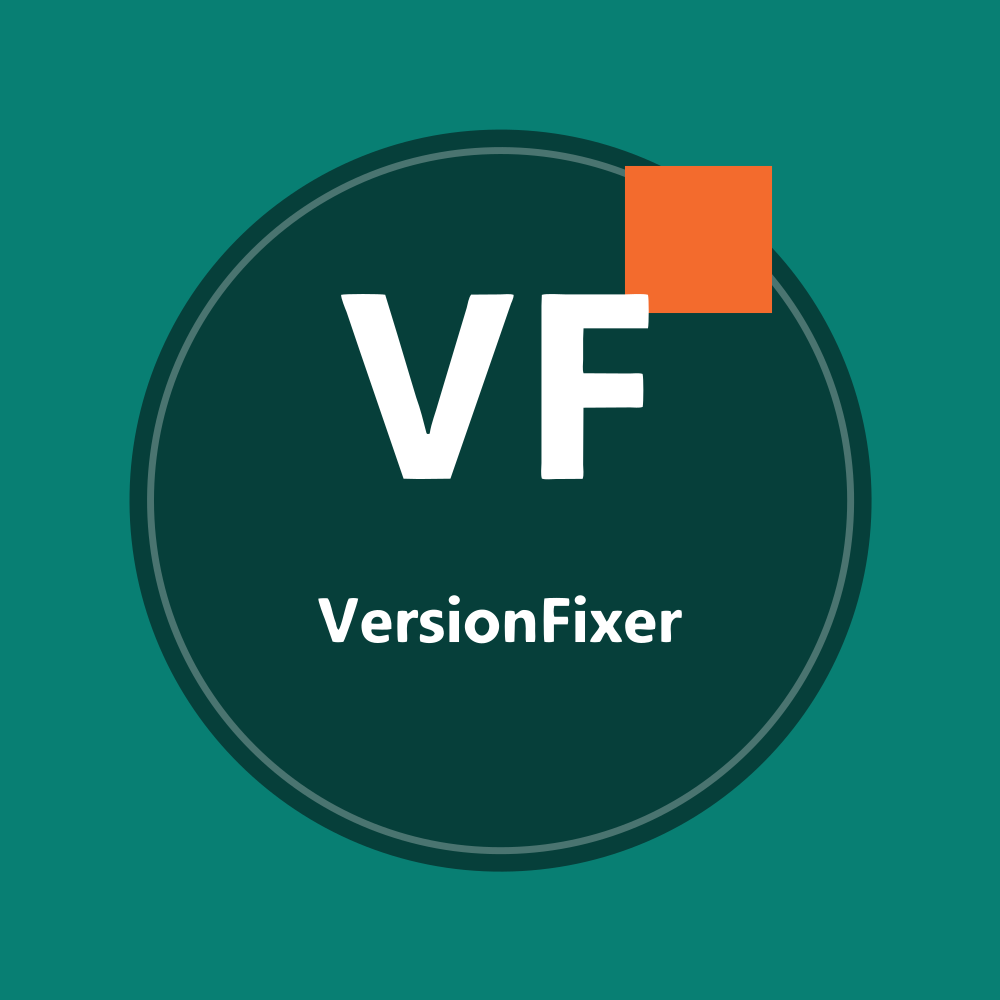
VersionFixer badge

Clean badge result; shading is simplified. Check small lettering.

Before: original raster — VersionFixer badge
Before: original raster
After: rendered SVG — VersionFixer badge
After: rendered SVG

Engine processing: 5.532 s · 7,246 bytes SVG

Download SVGDownload original PNG

Settings
[]

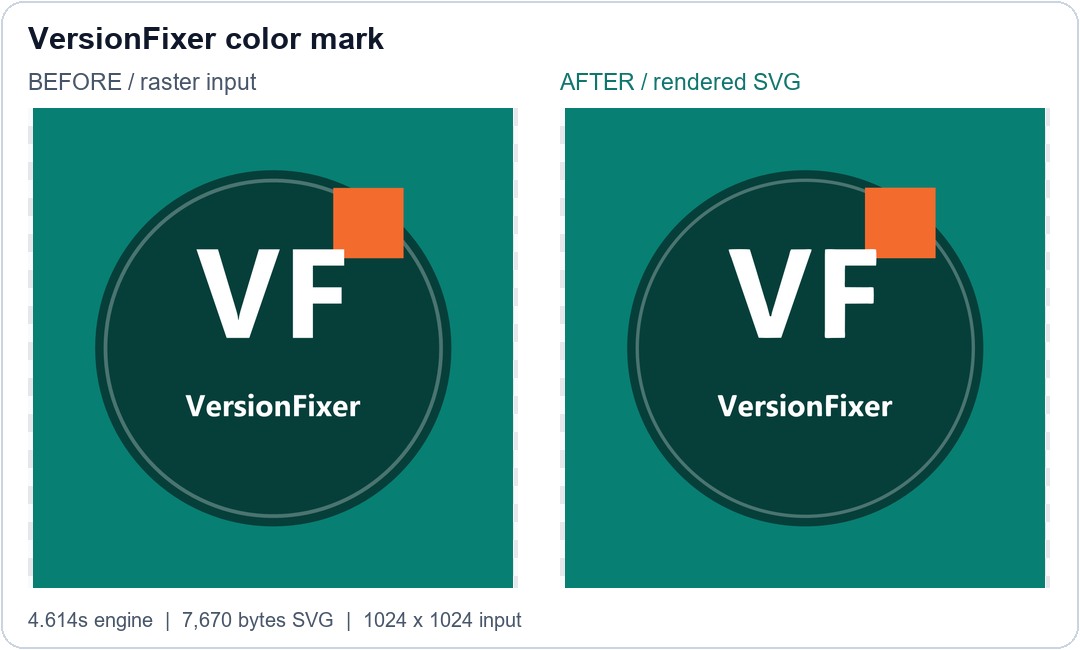
VersionFixer color mark

Strong color-mark result; inspect fine edges at zoom.

Before: original raster — VersionFixer color mark
Before: original raster
After: rendered SVG — VersionFixer color mark
After: rendered SVG

Engine processing: 4.614 s · 7,670 bytes SVG

Download SVGDownload original PNG

Settings
[]

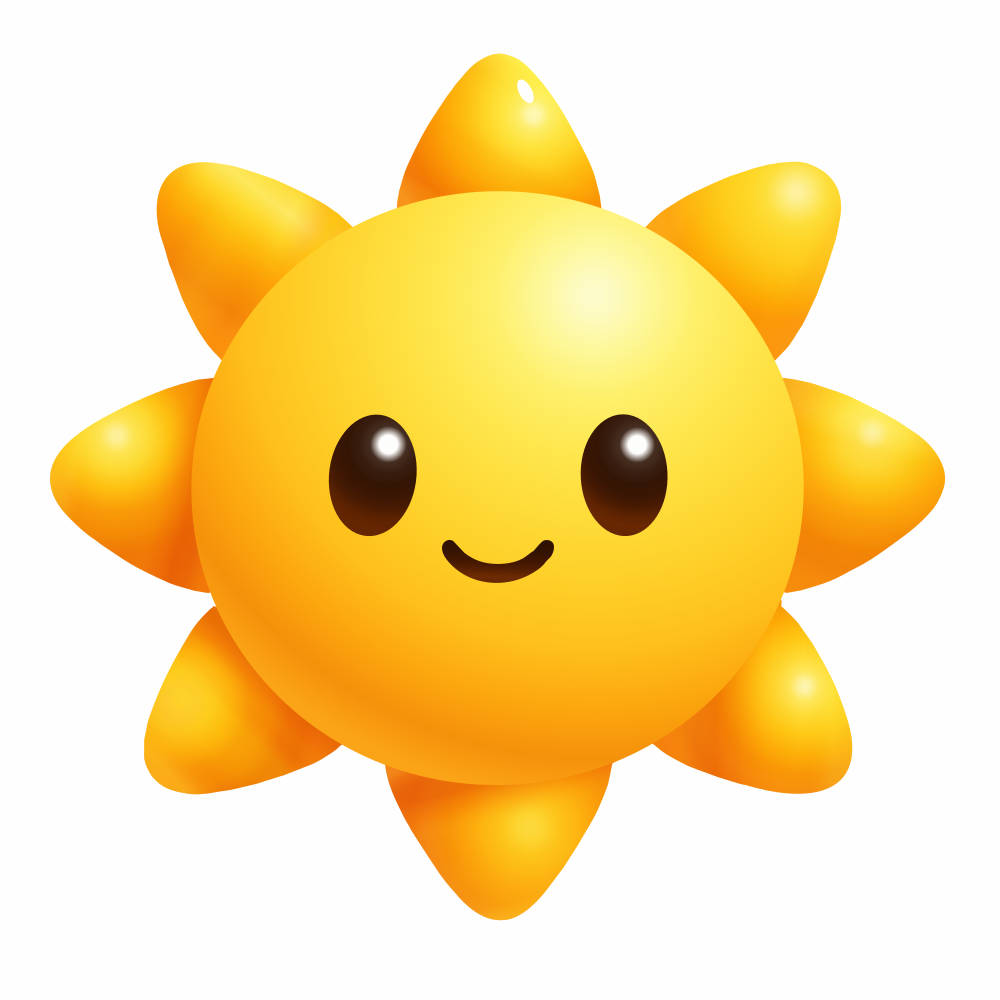
AI-generated shaded sun mascot

Needs review: the internal quality gate was not met. Inspect highlights, shading and facial details.

Before: original raster — AI-generated shaded sun mascot
Before: original raster
After: rendered SVG — AI-generated shaded sun mascot
After: rendered SVG

Engine processing: 12.551 s · 34,833 bytes SVG

Download SVGDownload original PNG

Settings
{
    "color_mode": "gradients",
    "gradient_mode": "on"
}

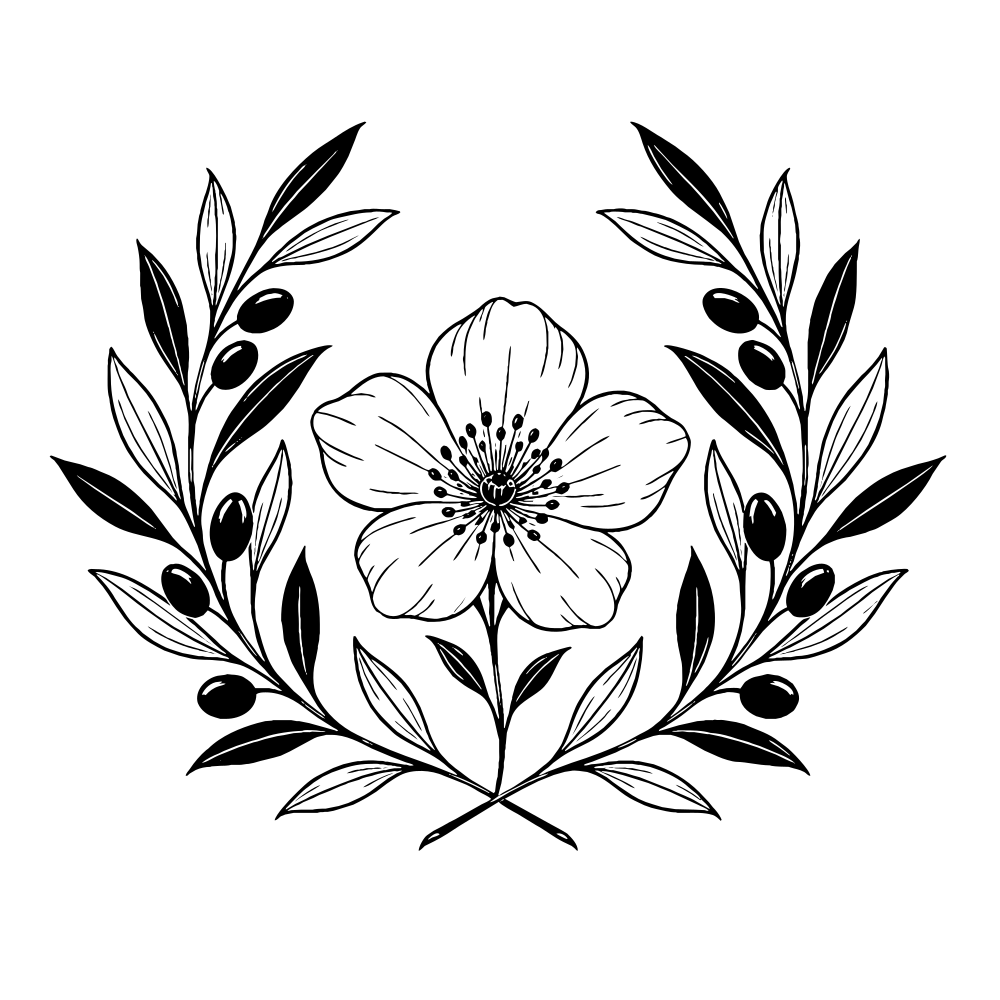
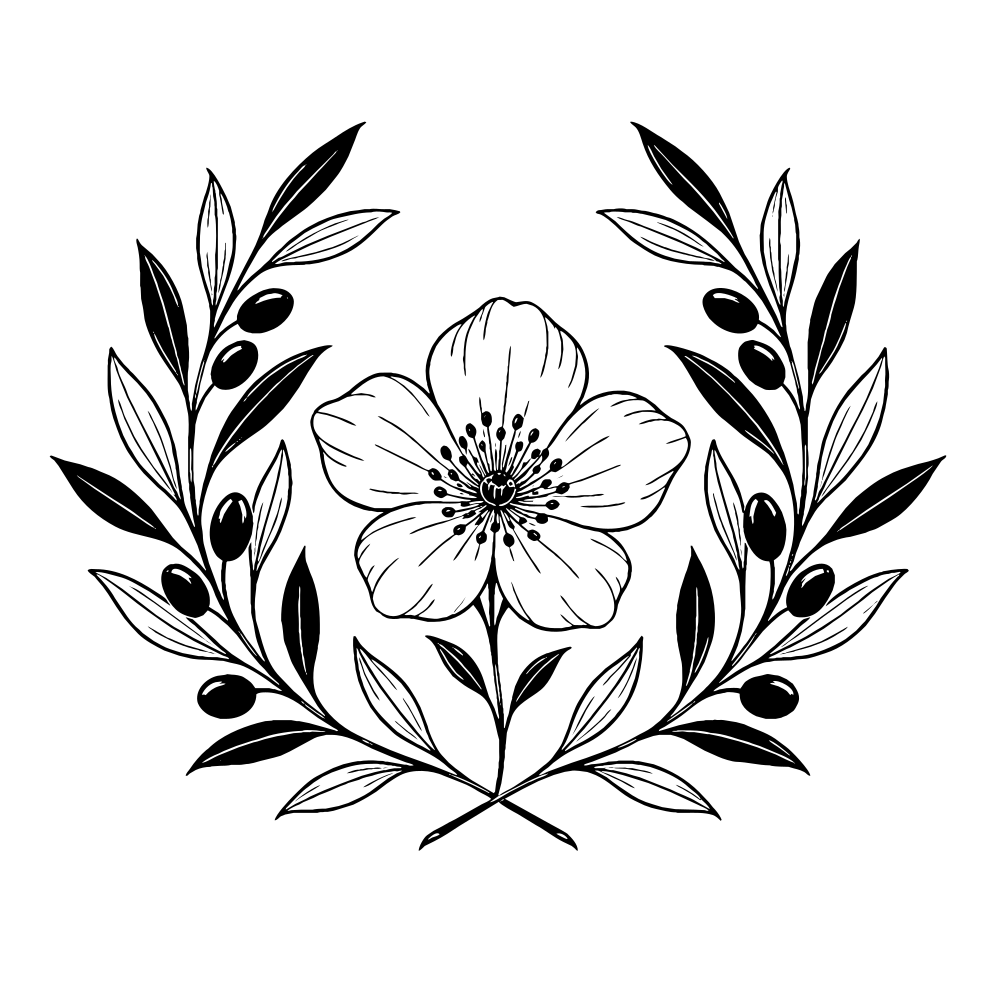
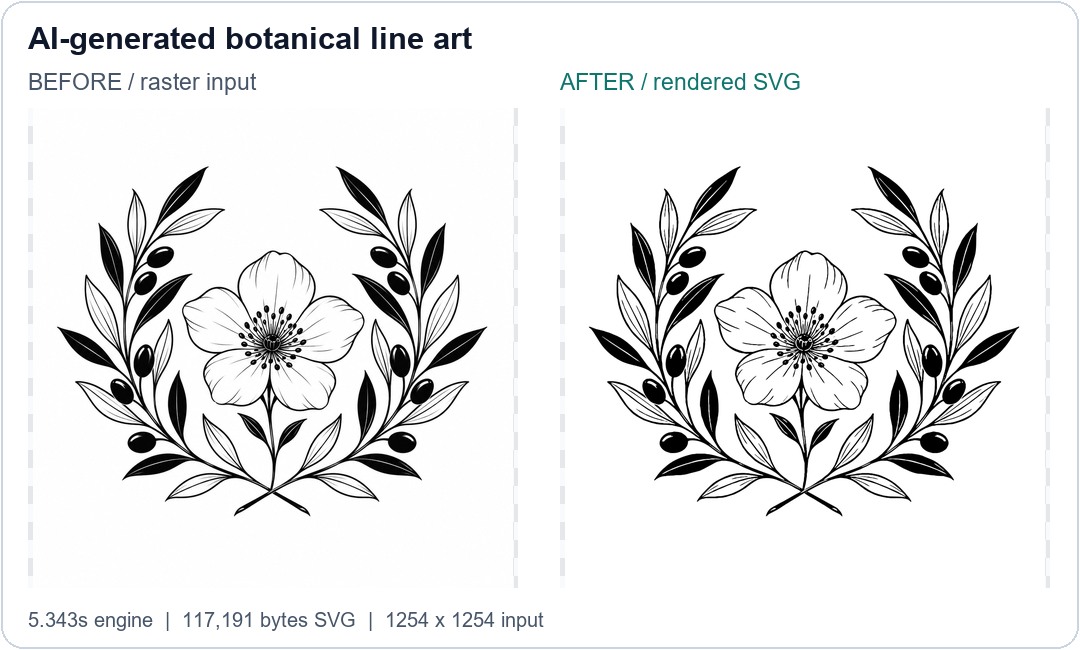
AI-generated botanical line art

Good outline for line art; inspect thin veins and small gaps.

Before: original raster — AI-generated botanical line art
Before: original raster
After: rendered SVG — AI-generated botanical line art
After: rendered SVG

Engine processing: 5.343 s · 117,191 bytes SVG

Download SVGDownload original PNG

Settings
{
    "color_mode": "black_and_white",
    "gradient_mode": "off"
}

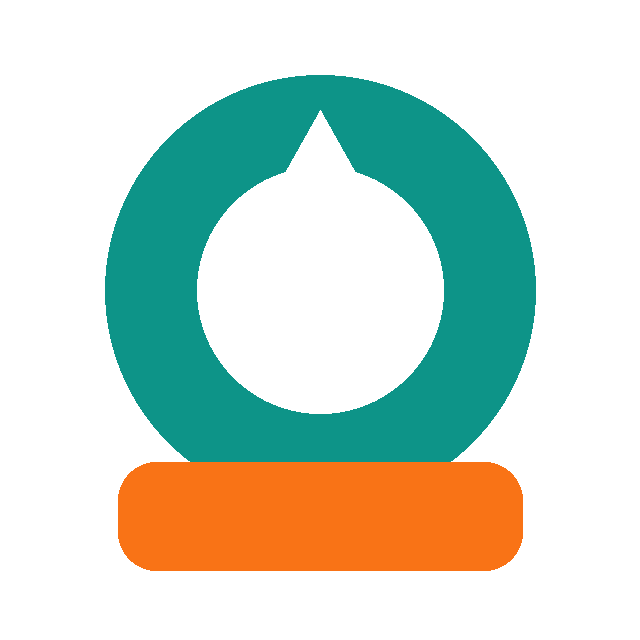
Transparent emblem and cutout

Needs review: transparency and cutouts remain, but a white foreground area changed to orange with three colors.

Before: original raster — Transparent emblem and cutout
Before: original raster
After: rendered SVG — Transparent emblem and cutout
After: rendered SVG

Engine processing: 1.721 s · 9,017 bytes SVG

Download SVGDownload original PNG

Settings
{
    "transparent_bg": "keep",
    "num_colors": 3,
    "gradient_mode": "off"
}

Four-color palette test

Needs review: the custom palette reassigned visible colors despite passing the internal gate.

Before: original raster — Four-color palette test
Before: original raster
After: rendered SVG — Four-color palette test
After: rendered SVG

Engine processing: 1.676 s · 1,638 bytes SVG

Download SVGDownload original PNG

Settings
{
    "color_mode": "custom_palette",
    "custom_colors_hex": "#fffaf0, #0f766e, #f97316, #1e3a8a",
    "num_colors": 4,
    "gradient_mode": "off"
}

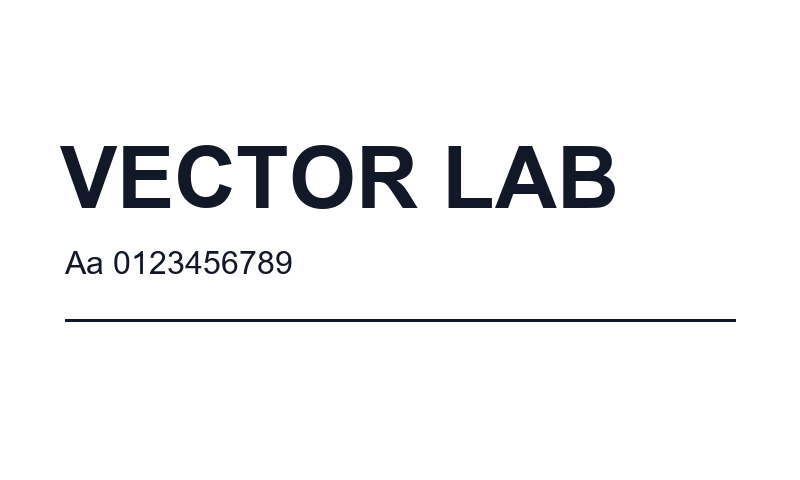
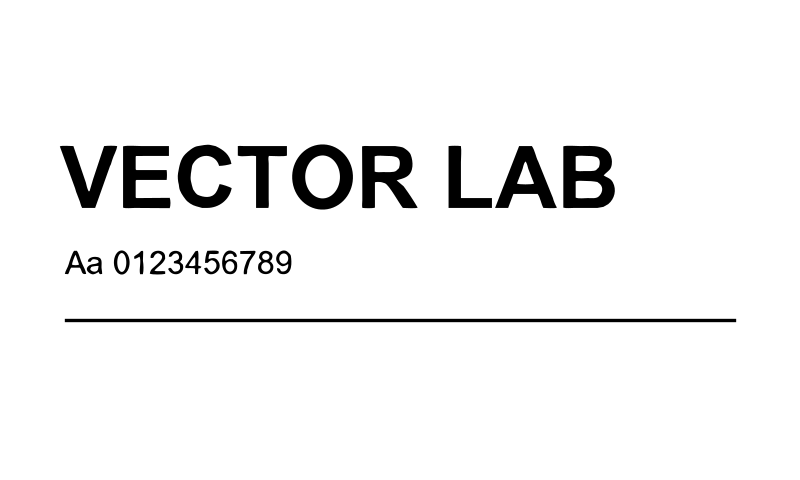
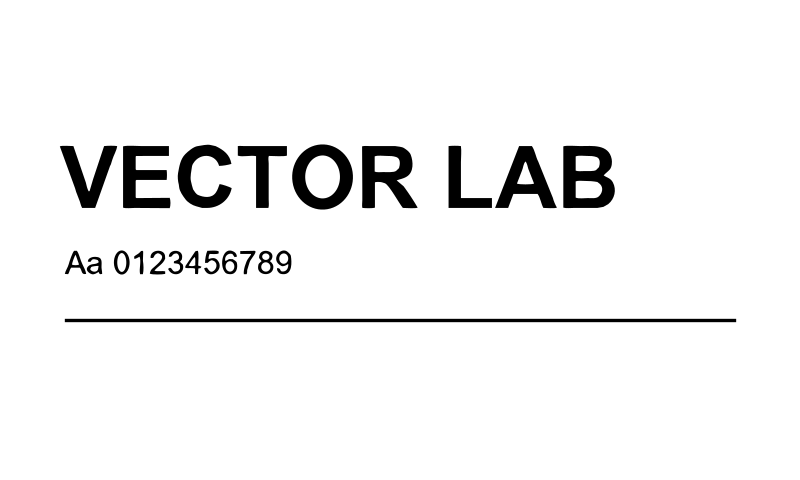
VECTOR LAB lettering

Inspect the letter contours. The result is paths, not live font text.

Before: original raster — VECTOR LAB lettering
Before: original raster
After: rendered SVG — VECTOR LAB lettering
After: rendered SVG

Engine processing: 2.049 s · 11,703 bytes SVG

Download SVGDownload original PNG

Settings
{
    "color_mode": "black_and_white",
    "gradient_mode": "off"
}

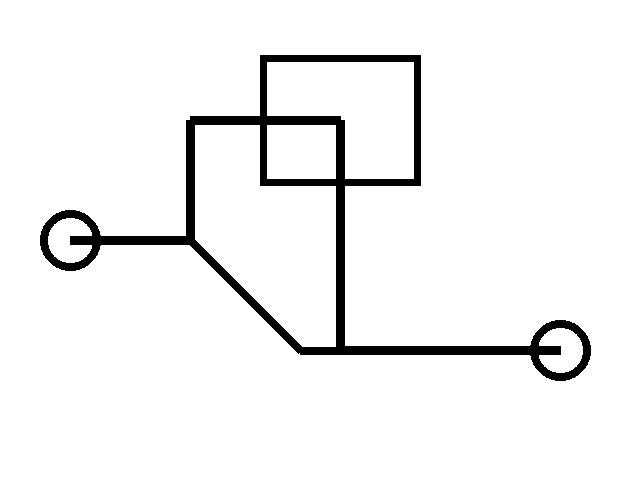
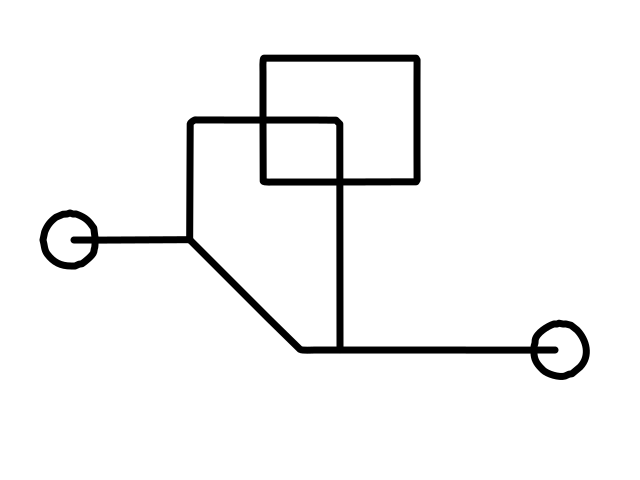
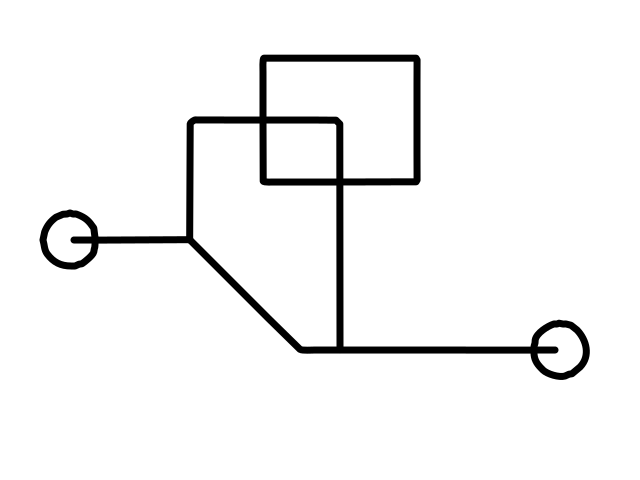
Centerline network

Special centerline output: judge the strokes, not filled-silhouette overlap. Not a machine-ready guarantee.

Before: original raster — Centerline network
Before: original raster
After: rendered SVG — Centerline network
After: rendered SVG

Engine processing: 0.622 s · 2,121 bytes SVG

Download SVGDownload original PNG

Settings
{
    "color_mode": "black_and_white",
    "path_mode": "centerline",
    "gradient_mode": "off",
    "centerline_stroke_width": 7
}

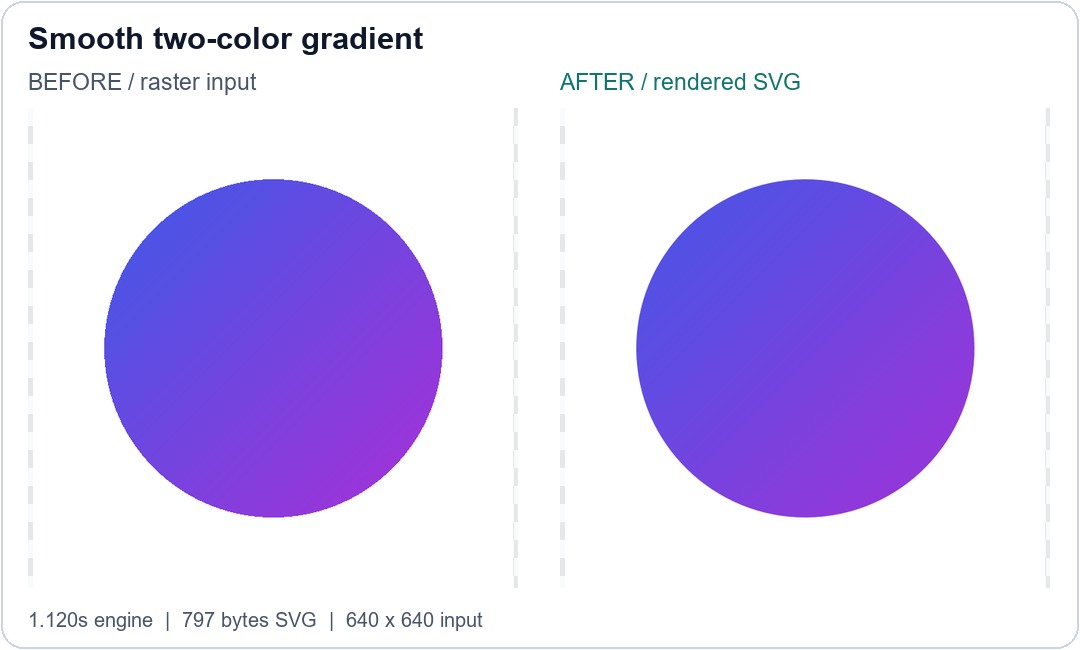
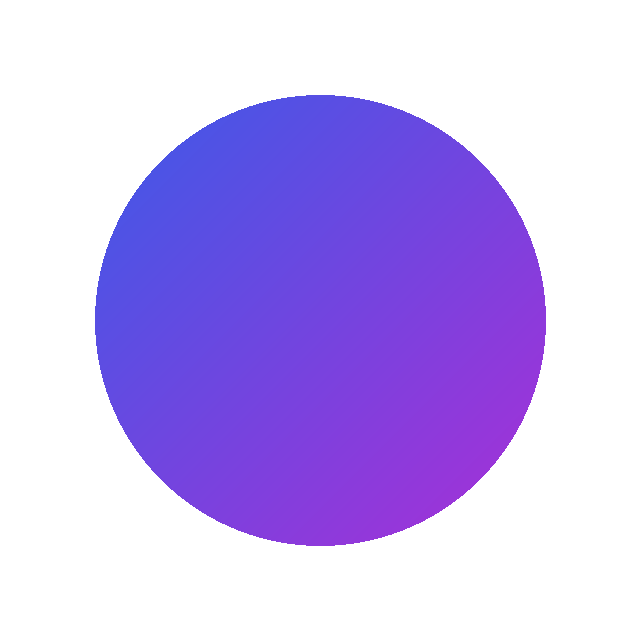
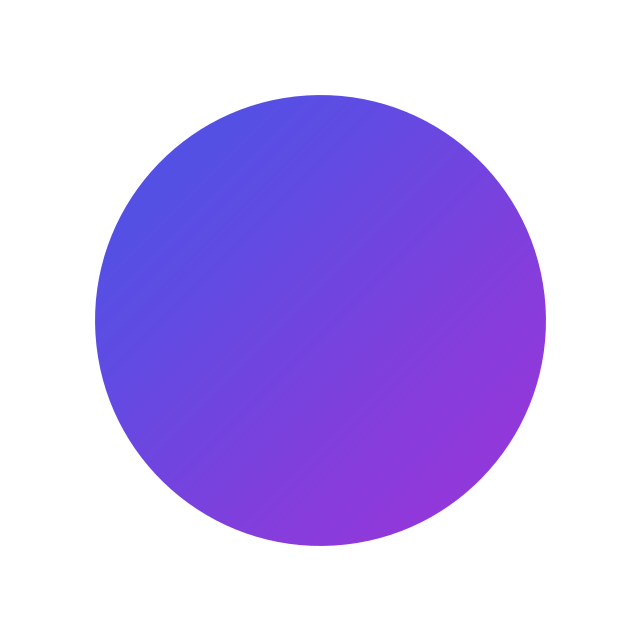
Smooth gradient

Check the direction and continuity of the two-color gradient.

Before: original raster — Smooth gradient
Before: original raster
After: rendered SVG — Smooth gradient
After: rendered SVG

Engine processing: 1.12 s · 797 bytes SVG

Download SVGDownload original PNG

Settings
{
    "color_mode": "gradients",
    "gradient_mode": "on"
}

Low-resolution JPEG fixture

Damaged low-resolution input limits fidelity. Missing detail is not recovered.

Before: original raster — Low-resolution JPEG fixture
Before: original raster
After: rendered SVG — Low-resolution JPEG fixture
After: rendered SVG

Engine processing: 0.426 s · 1,562 bytes SVG

Download SVGDownload original PNG

Settings
{
    "auto_deblock_jpeg": true
}

From an AI-generated logo to editable SVG paths

A logo downloaded from ChatGPT or Gemini may look crisp while still being a grid of pixels. Making that image larger is not the same as creating vector paths. This workflow starts from artwork you have approved and ends with an SVG you can inspect and edit.

1. Approve the design before tracing

Check spelling, symbol shapes and layout in the original. Keep the cleanest source available, preferably PNG for graphics and transparency. If you use an AI tool to improve a poor image, compare it against the approved design: enhancement can invent letters, change spacing or redraw a symbol. Save the original and reject changes you did not intend. Only process artwork you have permission to use.

2. Choose a practical starting configuration

Upload the image to TrueVector and start with automatic colors and filled shapes for a normal logo. Keep native transparency when it is already present. Use a custom palette only when you need specific colors and can inspect the assignments. Dark outlines on white paper may suit black-and-white mode, while colored artwork needs a different treatment. Do not apply a centerline setting merely because the source has outlines; compare the result with your intended use.

3. Inspect the details that matter

Compare the preview with the original at a useful zoom. Examine small letters, counters inside letters, thin strokes, sharp corners and the boundaries between adjoining colors. Our shaded mascot example needs review, and reduced palettes can recolor parts. If a detail disappears, change the settings or correct the output in an editor rather than assuming a larger source will solve everything.

4. Open and finish the SVG

Download SVG, EPS or PDF and inspect the individual vector paths in your design application. Traced letters are shapes, not editable font text or the original source layers. AI is a PDF-compatible vector file for opening in Adobe Illustrator, not a native Illustrator source document.

Cost and limits

Preview for free. Only the first download of this result uses your free offer or 30 points. SVG, EPS and PDF plus repeat downloads are then included. PNG, JPG or WebP · Up to 20 MB and 5000 × 5000 pixels. Processing may resize large images; more input pixels do not guarantee more detail.

Choose colors, backgrounds and paths for your SVG

The right setting depends on the source and the job you want the SVG to do. Start with a simple configuration, change one option at a time and compare the resulting paths—not just the small preview.

Automatic colors versus a fixed palette

Automatic mode is a useful baseline for multicolor artwork. Reducing the palette can simplify a design but can also merge distinct regions. In our three-color transparent emblem, a white foreground area became orange. A custom palette can constrain the available colors without guaranteeing that each region receives the intended one: the controlled four-color test visibly reassigned colors. Inspect brand colors and every important region before publishing or printing.

Gradients and black-and-white artwork

Use a gradient treatment when a smooth color transition is genuinely part of the approved artwork; inspect highlights and shading because tracing can simplify them. For dark line art on white paper, compare black-and-white mode with the original. Thin lines may join together or small gaps may close. Polarity controls concern which areas are treated as ink; they are not a substitute for checking the foreground and background.

Preserving transparency

An actual transparent PNG and a white background are different inputs. Keep the original transparency when available. Automatic background treatment or forced transparency should be reviewed around edge pixels and enclosed white shapes. Do not assume every white part is background: white lettering or a white element inside a logo may be essential artwork. A checkerboard indicates transparency in many viewers, but inspect the file over both light and dark backgrounds.

Filled shapes or centerlines?

Filled paths describe enclosed regions, a natural starting point for colored logos. Centerlines describe strokes through line work and can be useful for particular drawing or engraving workflows. They are not automatically machine-ready cut paths. Inspect duplicate strokes, open ends, scale, stroke width and tool-specific requirements. Our centerline test should not be scored by a filled-area overlap gate.

A quick review checklist

Check small text, fine gaps, white foreground elements, color boundaries and background edges. Open the SVG in an editor and inspect a few individual shapes or strokes. Keep the original file and the settings used so that you can reproduce the result. More colors or more nodes do not automatically mean better quality, and a passed automated gate does not replace visual review.

Is your SVG really vector artwork or just an embedded image?

SVG is a container that can describe vector shapes, but it can also contain raster images. A file extension alone cannot tell you whether a conversion created useful paths. Inspect the objects and the rendered result together.

The distinction that matters

Raster artwork stores colored pixels. Vector artwork describes geometry, such as paths, lines and filled shapes. An SVG that only embeds the original PNG may open in a vector editor but still lacks traced outlines you can adjust individually. The demonstration SVG files in our ten-case test were checked for embedded raster and active or external content; that is a property of those samples, not proof that every arbitrary SVG found online is safe or vector-only.

How to inspect a downloaded file

Open the SVG in a trusted vector editor and select objects. Try adjusting an individual shape or node and changing its fill. Use the editor’s outline or node view to distinguish traced geometry from a single raster rectangle. Zooming alone is not a conclusive test: a large embedded image can look sharp at moderate magnification. Download one of our sample SVGs and compare its paths with the corresponding original PNG.

Vectorization is not source-project recovery

Tracing estimates geometry from visible pixels. It does not restore the original design history, hidden layers, lost colors, missing details or the exact font. Letter shapes may be editable as paths without being editable as text. A logo saved as SVG can therefore still need careful typographic or geometric cleanup before delivery.

Choose the next step honestly

For a simple logo, inspect contours and negative spaces; for a photograph, expect a stylized approximation rather than recovered photographic detail. If you need an Illustrator AI file, open the SVG and save a separate copy in Illustrator. Merely renaming the extension is not conversion. For production cutting or engraving, have the output checked against the target machine’s requirements rather than assuming every SVG is ready to run.

The following guides describe VersionFixer workflows. Mentioning ChatGPT, Gemini or Illustrator does not imply affiliation. Use artwork and fonts you are authorized to use.